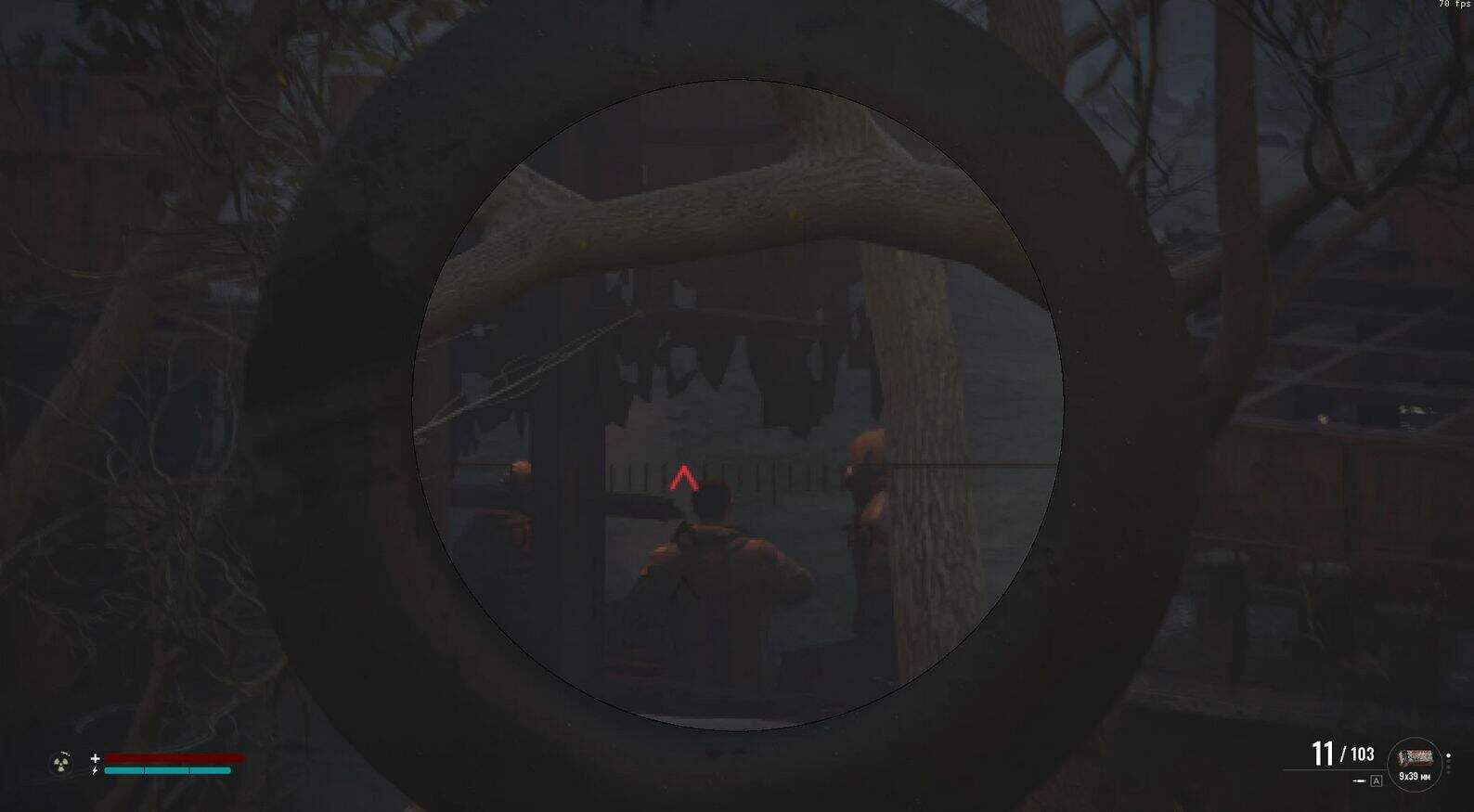
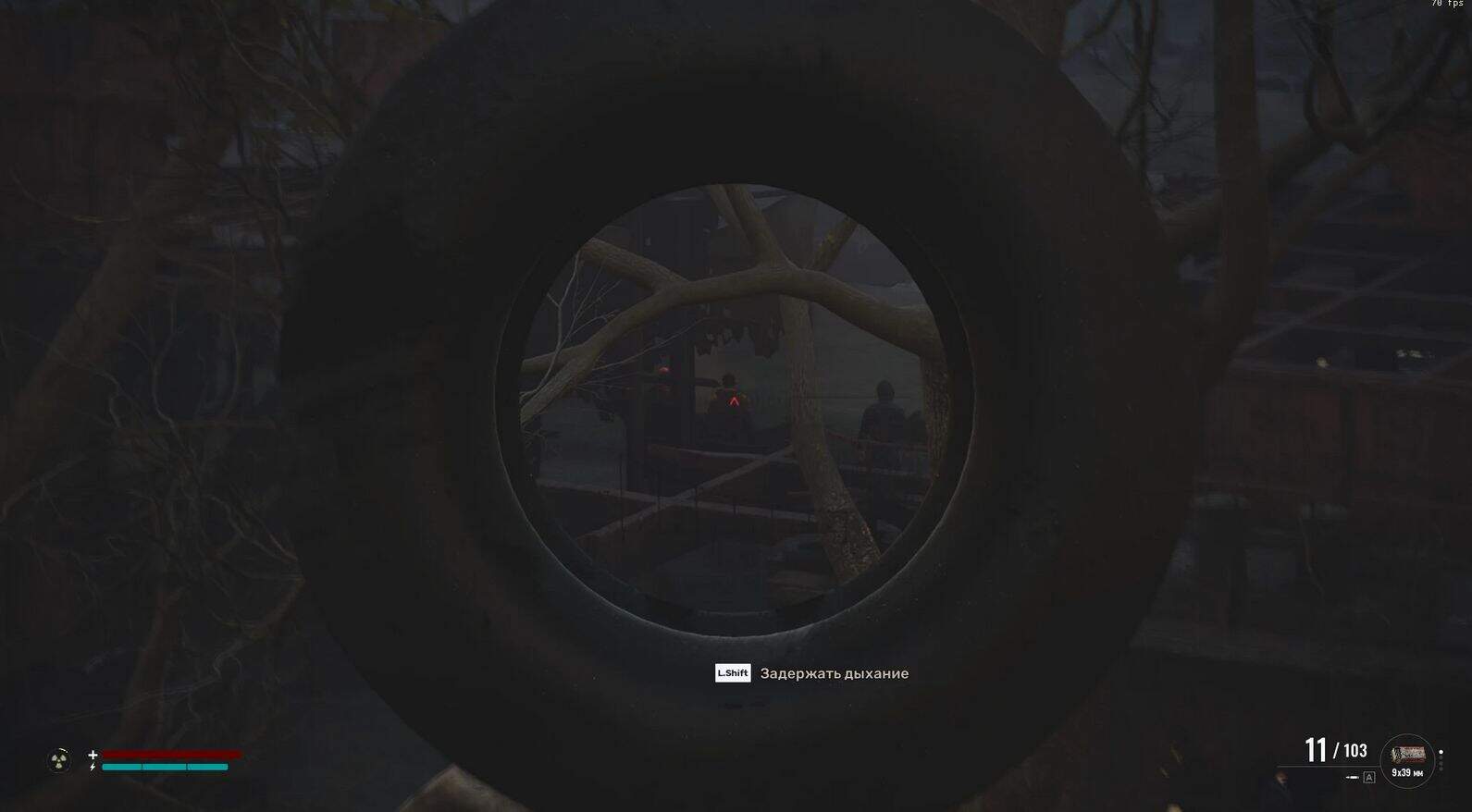
Scopeshift
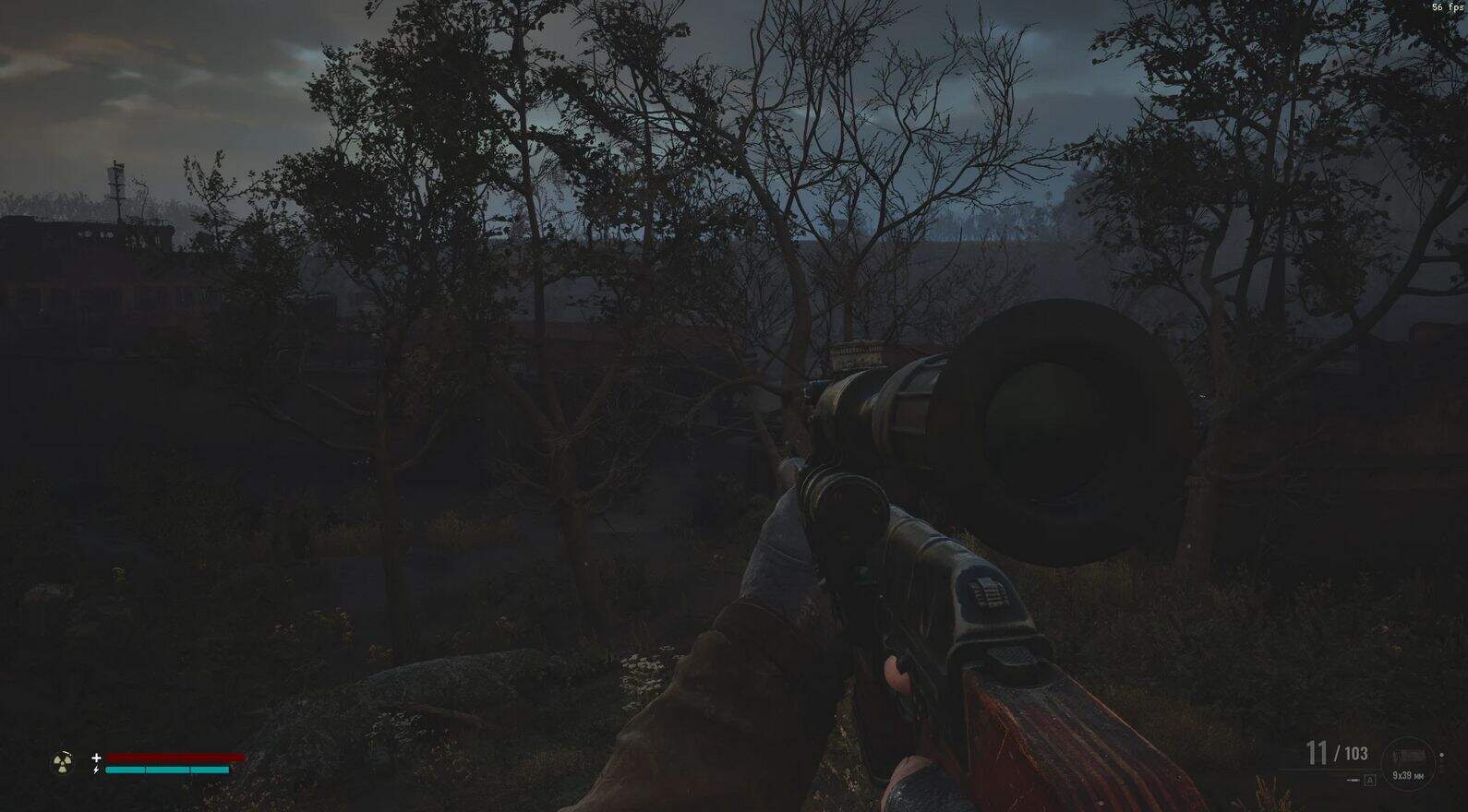
Toggle a zoom (magnifier) effect in-game by pressing Caps Lock.
Goal:
Enable a zoom (magnifier) effect in any game using ReShade, and toggle it on/off using the Caps Lock key.
What You’ll Use
✅ ReShade – A post-processing injector for games.
✅magnifier.fx– A built-in shader for zoom/magnification.
✅ Caps Lock key – Used as a toggle switch for the zoom effect.
Setup Instructions1. Install ReShade (if not already installed)
Download ReShade from: https://reshade.me/
Run the installer and select your game’sStalker2.exe
file located in C:\S.T.A.L.K.E.R. 2 Heart of Chornobyl
Choose your rendering API (e.g., DirectX 11/12, Vulkan).
When prompted, install the Standard Effects package (this includesmagnifier.fx).
2. Enable
magnifier.fxShader
Launch your game.
Press Home (or your set ReShade menu hotkey) to open ReShade.
Under the Home tab:
Findmagnifier.fxin the shader list.
Check the box to enable it.
You will see the zoom effect on screen immediately.
3. Customize the Zoom effects:
[MagnifyingGlass.fx]
HideOnScreenshot=0
invertColorBackground=0
lensBorderColor=0.000000,0.000000,0.000000
lensBorderWidth=0.001000
lensRadius=0.390000
lensZoom=3.000000
magnifyingGlassUICoords=0.500000,0.500000
pointToggle=1
showWhenClick=0
useUICoords=1
4. Set Caps Lock as the Toggle Key
Go to the Settings tab in ReShade.
Scroll down to the “Effect Toggle Key” or search bar, and find the keybinding for togglingmagnifier.fx.
Click in the key toggle effect box and press Caps Lock
ResultNow, when you’re playing the game:
Press Caps Lock → Zoom toggles on.
Press Caps Lock again → Zoom toggles off.
This behaves just like a scope, magnifier, or photo zoom feature — fully native to ReShade with no extra tools or scripts.