White Hair Bug and Glow Fix v1.0
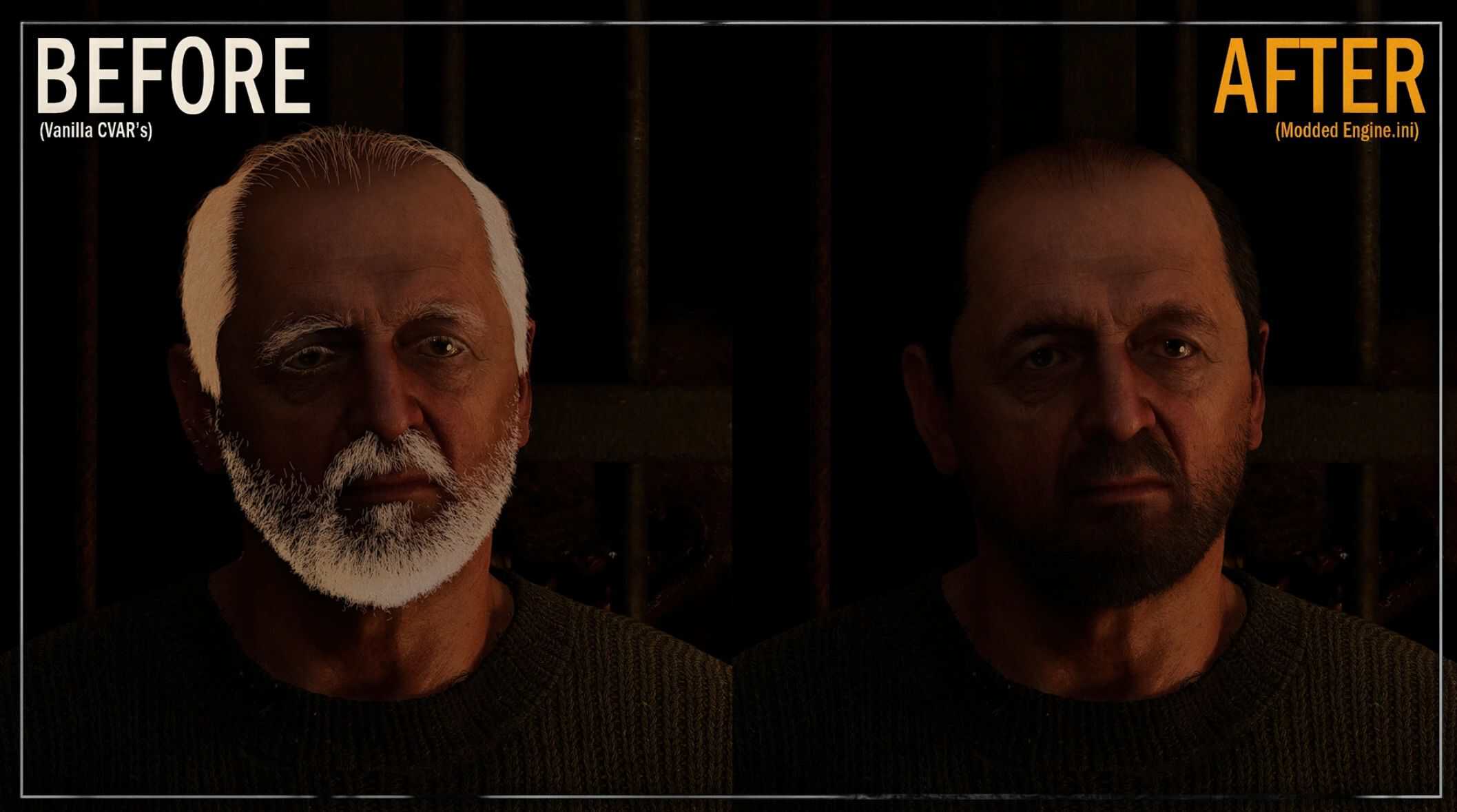
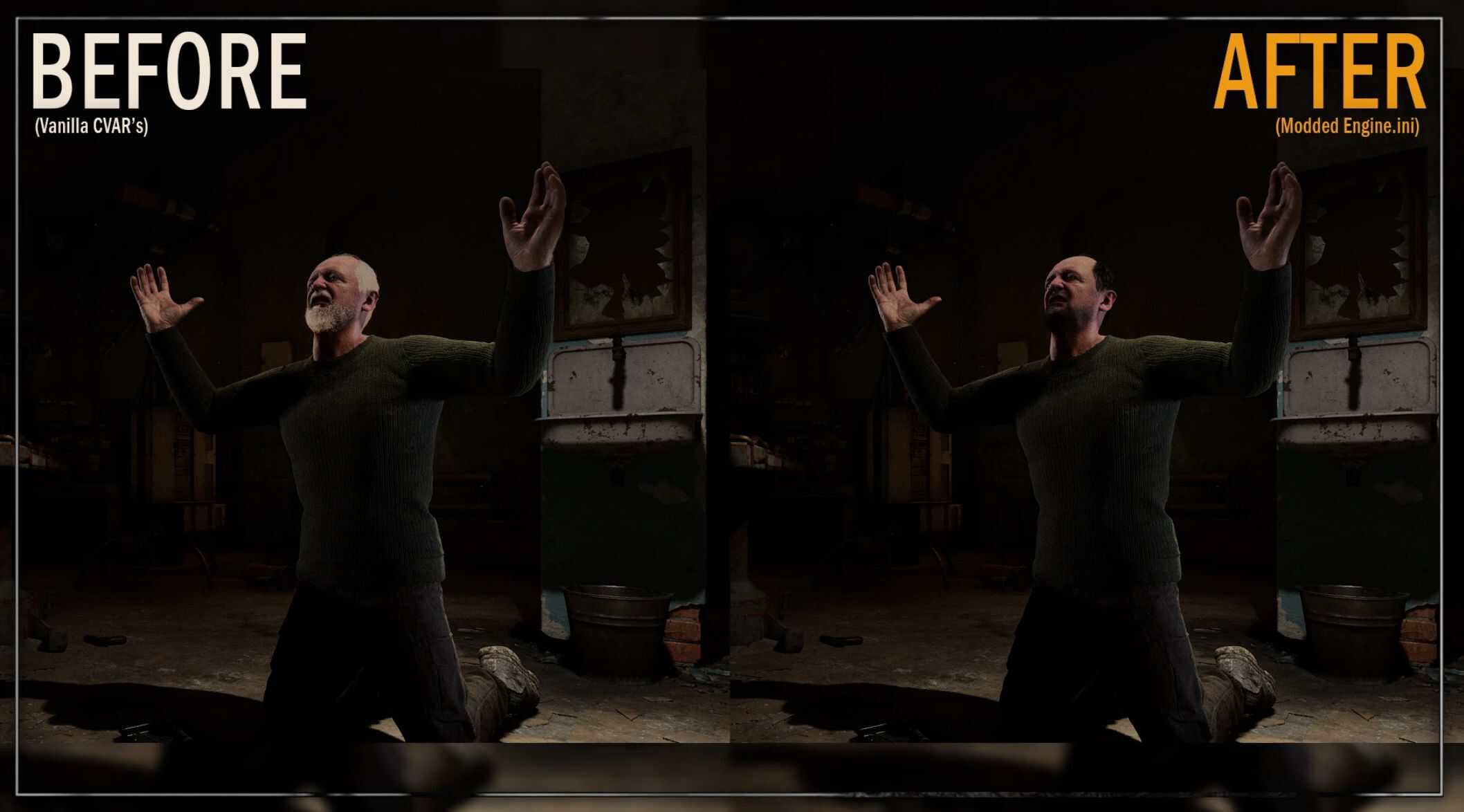
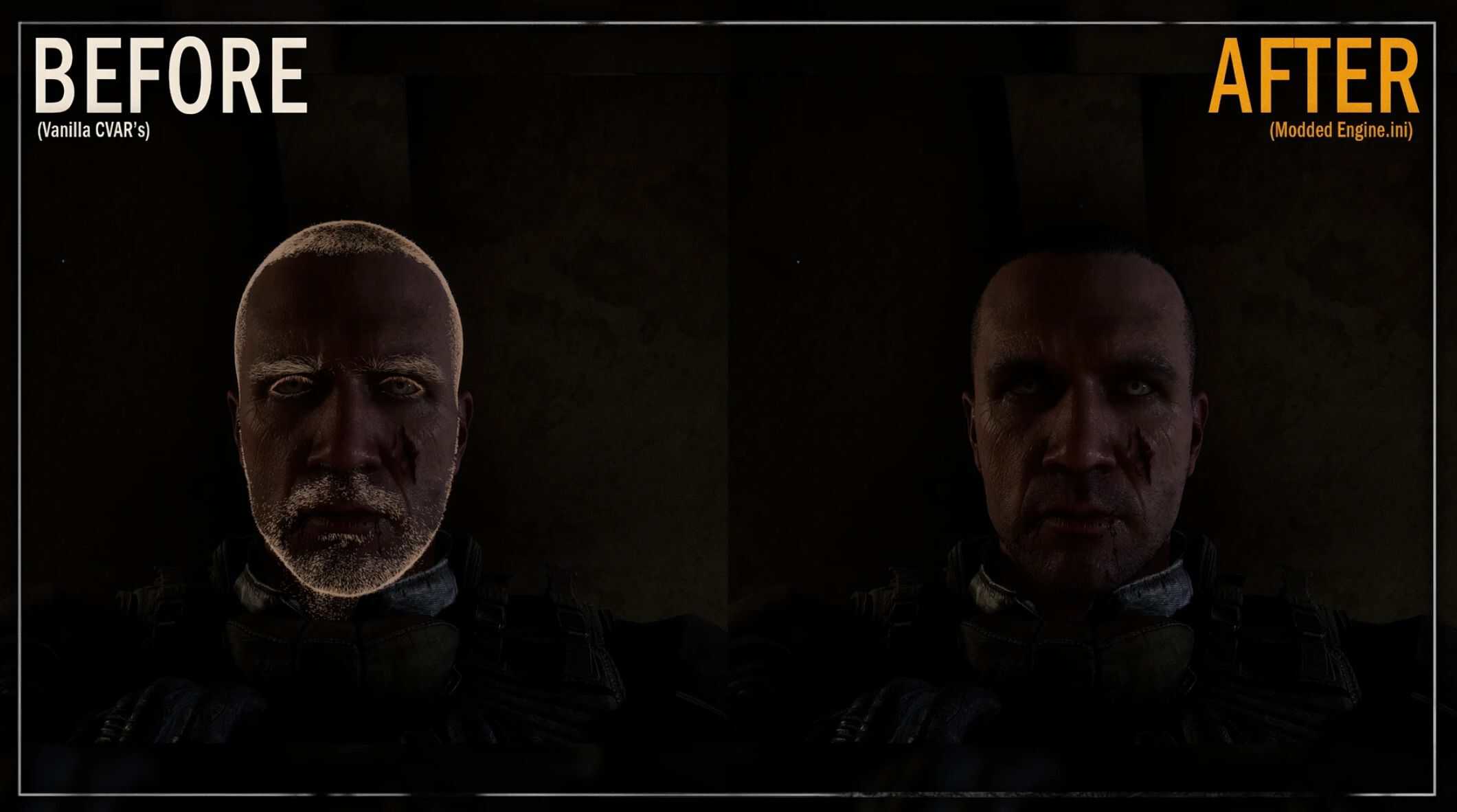
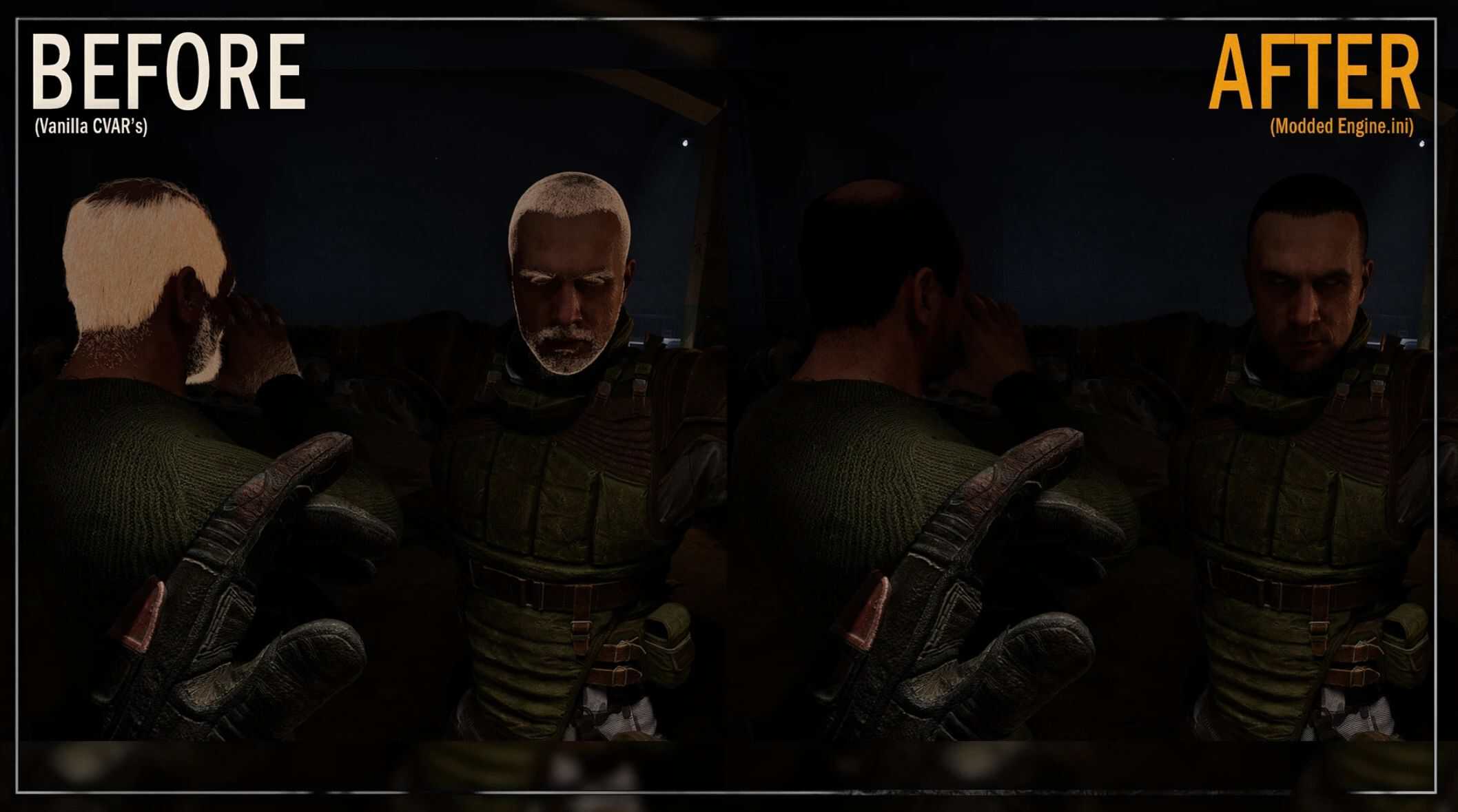
Fixes the glowing white hair bug by correcting values for hair rendering.
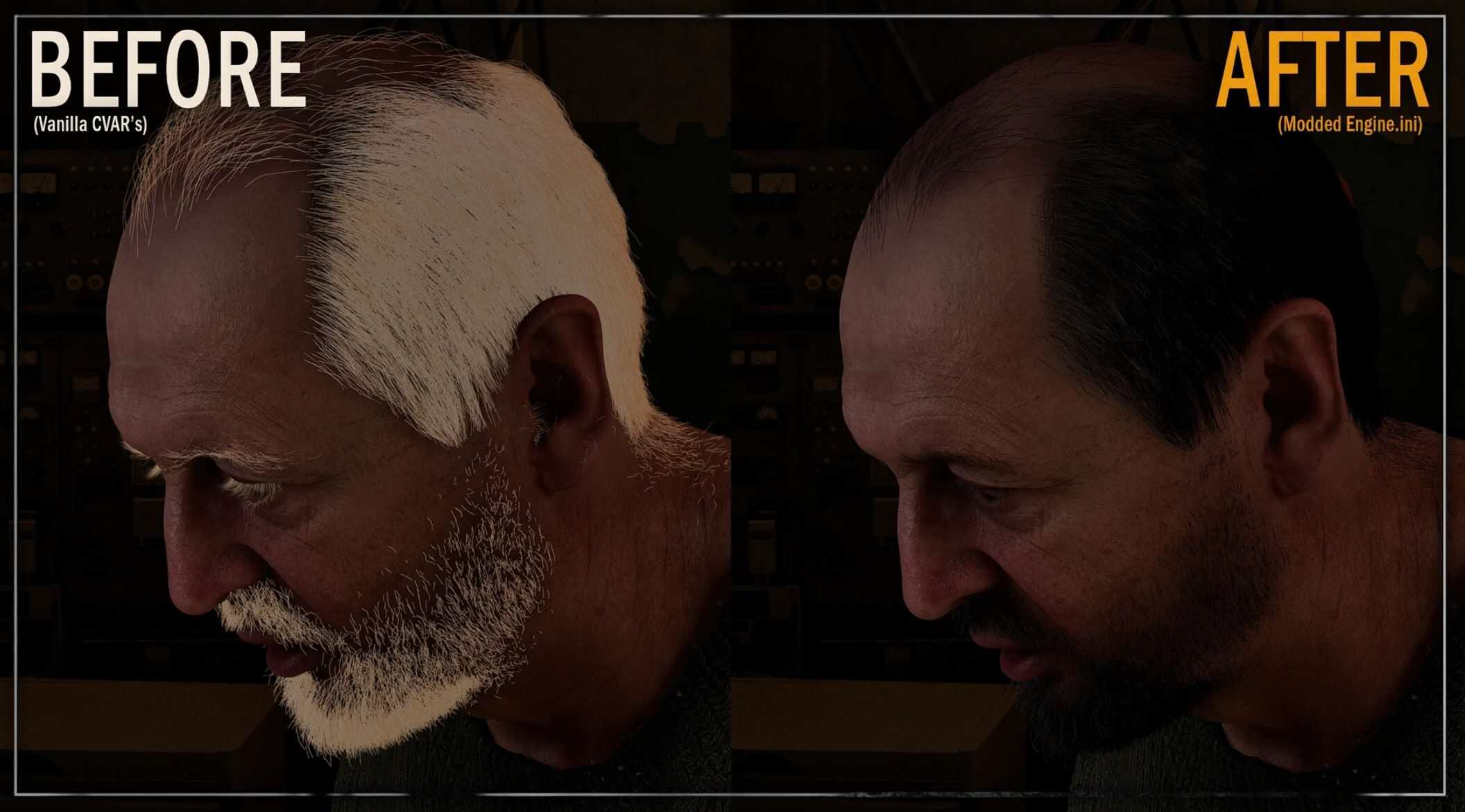
A few days ago, I came across a question on the official GSC Game World Discord server regarding a bug that causes characters’ hair to turn glowing white during cutscenes.
The developers confirmed that this is a known issue and will be fixed in future updates.
Since I already know how to fix it, I decided to release this small tweak so players can enjoy proper hair rendering while waiting for an official patch/fix.
What causes the issue?
The problem lies in two cvar’s related to hair sky lighting.
During normal gameplay, the game uses:
r.HairStrands.SkyLighting.IntegrationType=2
r.HairStrands.SkyLighting.IndirectLightBoost=100000
When a cutscene starts, the game is supposed to dynamically switch to:
r.HairStrands.SkyLighting.IntegrationType=1
r.HairStrands.SkyLighting.IndirectLightBoost=1
However, due to a bug, these values are sometimes not applied correctly.
As a result, the gameplay values persist into cutscenes, causing extremely overblown lighting on hair – making it appear bright white and glowing.
Why not just use vanilla cutscene values all the time?
While that might seem like an easy fix, it actually introduces visual issues elsewhere.
Using cutscene values globally can break the appearance of some characters in certain locations (for example, inside Zalissya Bar), so I do not recommend that approach.
Another issue in the vanilla besides the cutscenes:
Even with default gameplay values, you may sometimes notice a subtle “ambient glow” effect on hair, making it look slightly overlit / unnatural
My values also addresses that.
Changes:
r.HairStrands.SkyLighting.IntegrationType=2
Controls how sky lighting is integrated into hair rendering.
2 = Vanilla in gameplay
1 = Vanilla in cutscenes
2 = Mod Value
r.HairStrands.SkyLighting.IndirectLightBoost=0
Controls the intensity of indirect (ambient) sky lighting on hair.
100000 = Vanilla in gameplay
1 = Vanilla in cutscenes
0 = Mod Value
Performance Comparison:
Tested on: Ryzen 7 7435HS, 16GB RAM, RTX 4060 8GB.
No impact on performance was observed.
How to install:
Option 1:
Drop the Engine.ini file into: C:\Users\~your_user~\AppData\Local\Stalker2\Saved\Config\Windows
Option 2:
If you already have an Engine.ini file, add the following lines under [SystemSettings]:
r.HairStrands.SkyLighting.IntegrationType=2
r.HairStrands.SkyLighting.IndirectLightBoost=0